Setup.Cash
How It Works
A step-by-step guide to everything on the platform — from building your first strategy to running it live with a real broker.
Visual walkthrough
See the platform flow before you start
Follow the numbered circles and arrows in each image. They show where to click, what to check, and what each screen means.
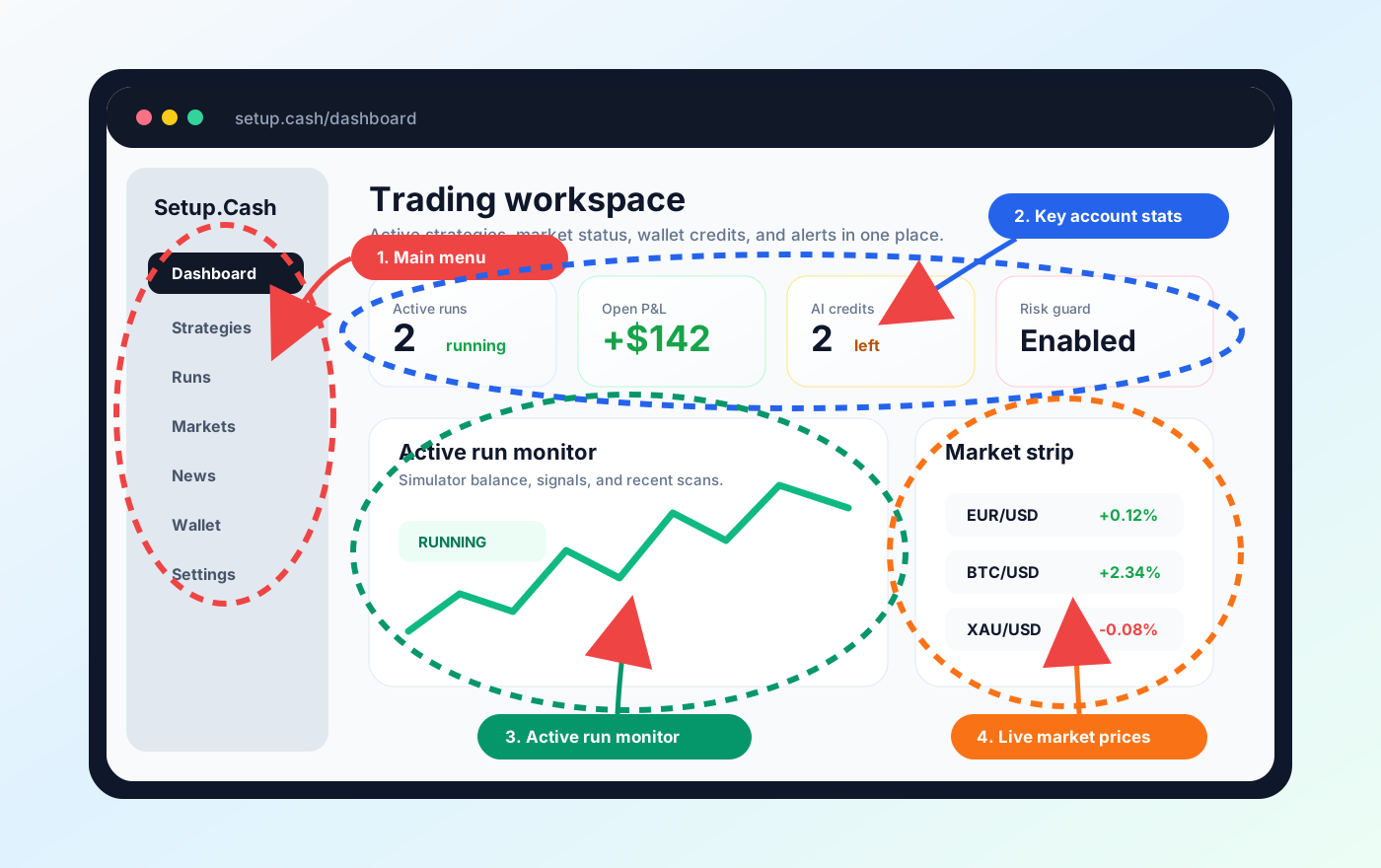
Dashboard overview
Start here to understand your active runs, credits, alerts, and market status.
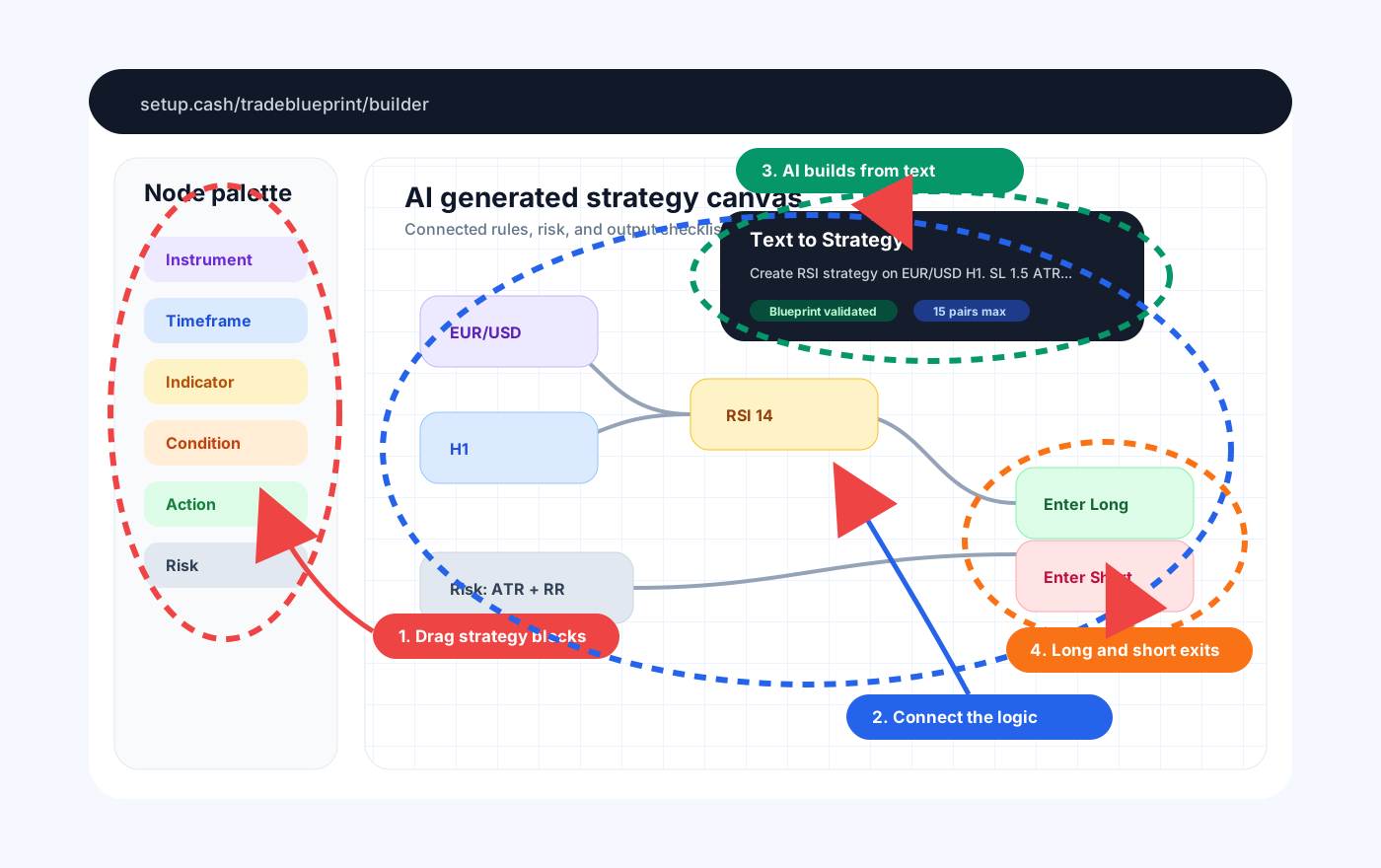
Strategy Builder and Text to Strategy
Build visually or describe the strategy in plain language and let AI create the graph.
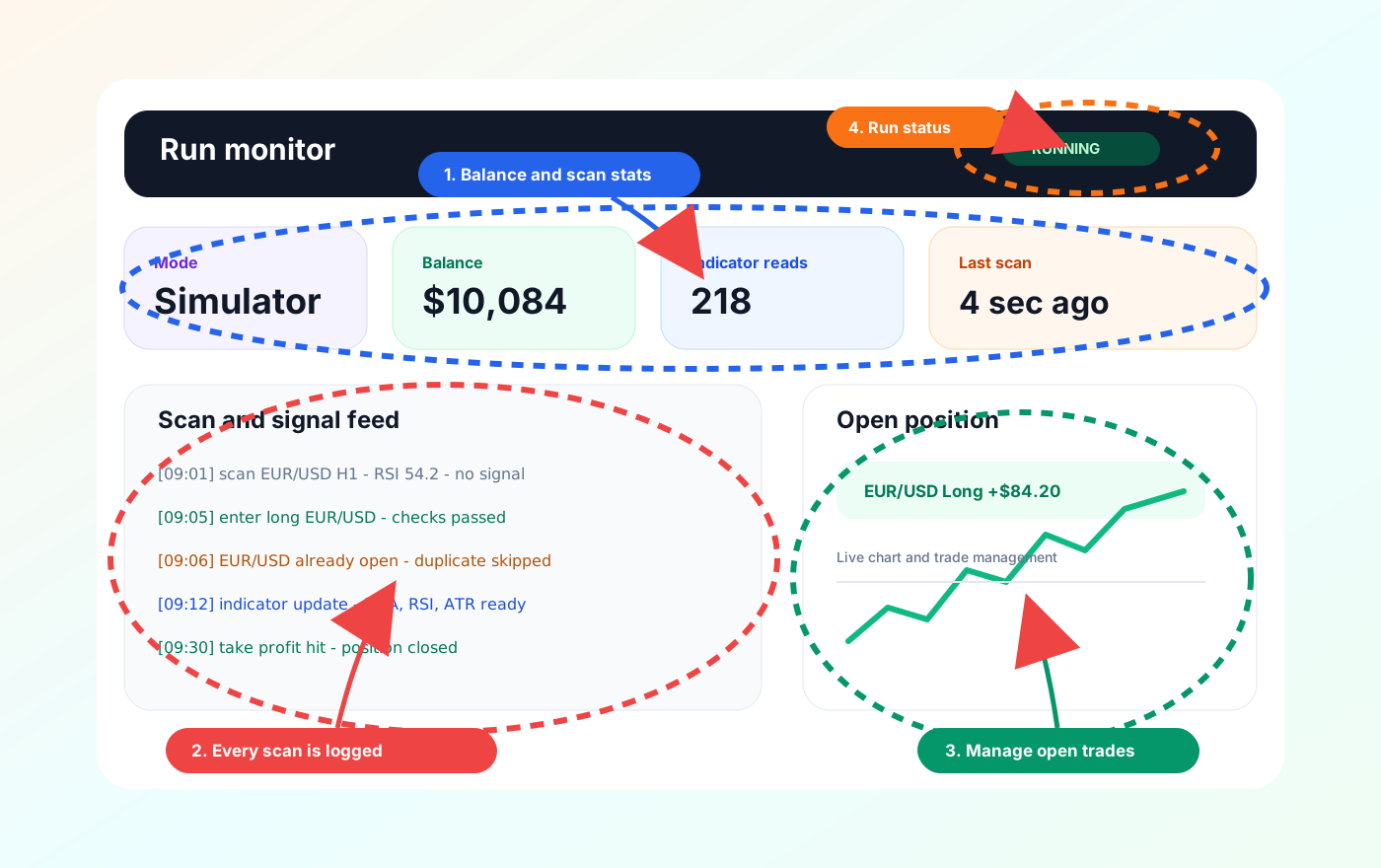
Simulator and live run monitor
Watch the engine scan, read indicators, generate signals, and manage positions.
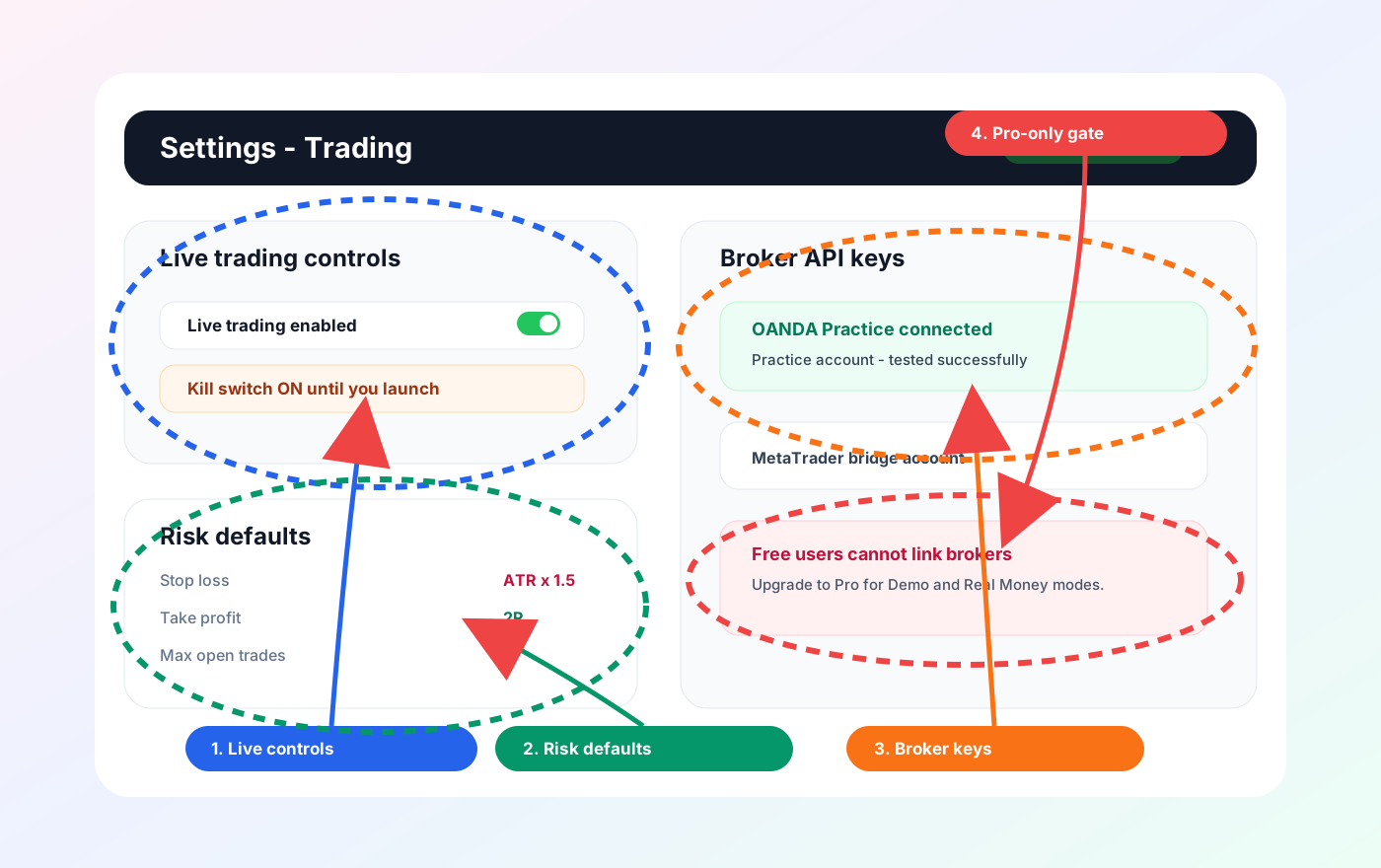
Broker, Pro access, and risk controls
Set broker access, kill switch, risk defaults, and live-trading safety rules.
Create Your Account
Sign up in under 60 seconds — no credit card required to start.
Go to setup.cash/signup
Enter your email address and choose a password.
Verify your email
Click the link in the confirmation email we send you.
Sign in
Go to setup.cash/signin and log in. You land on the Dashboard.
Set your trading timezone
Go to Settings → Trading and pick your local timezone. This affects how economic events and session windows display.
You can use Setup.Cash for free. Some features (AI strategy generation, advanced indicators) require a Pro plan.
The Dashboard
Your home base — all your key metrics and quick links in one place.
Dashboard overview
Start here to understand your active runs, credits, alerts, and market status.
When you log in you land on the Dashboard at /dashboard. From the left sidebar (desktop) or bottom navigation (mobile) you can reach everything:
Strategies
Create and manage trading strategies
Runs
View active and past trading runs
Pro Chart
Advanced candlestick charting
Markets
Live prices for Forex, Crypto, Stocks
News
Real-time financial news feed
Economic Calendar
Upcoming high-impact events
Social
Community feed, groups, squads
Settings
Broker, risk, account, billing
The Strategy Builder
The core of Setup.Cash. Build automated trading rules visually — no coding required.
A strategy is a set of rules that tells the platform when to buy, sell, or exit a position. You build it once, then run it as a Simulator, Demo, or Real Money run.
There are three ways to create a strategy:
Scratch Builder (Beginner — Guided)
Go to Strategies → Scratch Builder. Answer simple questions — which market, which indicator, entry condition, exit rules. The platform builds the graph for you.
Full Visual Builder (Advanced — Node Editor)
Go to Strategies → New Strategy and open the canvas. Drag and connect nodes to build complex rules.
Strategy Builder and Text to Strategy
Build visually or describe the strategy in plain language and let AI create the graph.
Every strategy MUST have both an Enter Long AND Enter Short action connected to the Output node. The checklist at the top of the builder tells you what is missing.
Text → Strategy (AI-Powered)
Click the AI button inside any strategy builder. Type what you want in plain English — the AI builds the node graph for you in seconds.
Strategy Builder and Text to Strategy
Build visually or describe the strategy in plain language and let AI create the graph.
Example prompts that work well:
- "EMA 20/50 crossover on EUR/USD H1. SL 1.5 ATR, TP 3:1 RR."
- "RSI below 30 buy, above 70 sell on BTC/USD H4. Max 1 trade at a time."
- "Multi-timeframe: H4 trend direction, M15 RSI entry. News blackout 30 min."
- "London session breakout with ATR stop loss and trailing exit."
Pro users get longer prompts and more complex strategy generation. Free users have a shorter prompt limit.
The Indicators Lab
Browse 100+ built-in indicators, build your own with AI or manual setup, test them on a chart, and use them in any strategy.
Indicators are the building blocks of a strategy — they turn raw price and volume into signals. The Indicators Lab (/indicators) is where you explore, create, preview, and manage them. It has three tabs:
100+ built-in indicators (RSI, MACD, Bollinger, Supertrend, Ichimoku, ADX, VWAP, and many more). Each one shows its full settings AND its outputs/functions — exactly what it computes and plots.
Save a configured indicator (e.g. "RSI 7 on M5 for scalping") and reuse it across strategies. Presets can be scoped to specific timeframes and symbols.
Build your own indicator with AI or manual setup, fully owned by you. Edit its inputs, outputs, and source code; preview it on a chart; then save it to your library.
Two ways to create your own indicator
1. With AI (text → indicator)
Describe the indicator in plain language (e.g. "an adaptive RSI that auto-tunes its length by volatility, with a smoothed signal line and overbought/oversold crossovers") and Claude codes a complete indicator — all inputs, outputs, and signals. The server runs it on real candles to verify it works (and auto-retries if it finds a mistake) before handing it back, so you never get a broken indicator. Generation runs server-side and keeps going even if you refresh the page.
2. Manual setup (no AI)
Use the simple formula language — a stateless, per-bar series language. Declare inputs and outputs, then write the logic with let, plot(...), and event(...), plus built-in price series (open/high/low/close/ volume) and 50+ functions (ema, sma, rsi, atr, vwap, stdev, zscore, correlation, linreg, slope, crossover, barssince, and more). The editor has syntax highlighting and line numbers.
Every custom indicator is validated when you save it — invalid code (undefined names, unknown functions) is rejected with a clear message, so it can never break later when you run a strategy.
Preview, customize, and use it
- Preview / Test on a chart: pick a symbol, timeframe, and candle window, then render candles with your indicator overlaid — with live stats (min, max, last value, signal counts) for every output.
- Customize a built-in: built-in indicators are shared and read-only, but the Customize button makes your own editable copy — saved to your profile only, never affecting the built-in or other users.
- Use it in a strategy: mention it by name in text-to-strategy and the AI uses your indicator; or add the Custom Indicator block in the simple builder; or wire its custom node in the blueprint builder.
Custom indicators are per-user: you can only edit your own, and nothing you do affects the shared library or anyone else's indicators. Learn more in the Indicators Lab docs and on the blog.
The Strategies Page
All your strategies in one place. Launch, edit, clone, or delete.
RSI Momentum EUR/USD
LIVE_READYEMA Crossover BTC
DRAFTNews Event Trader
VERIFIEDStrategy was just created or is incomplete. Cannot run yet.
Has completed at least one paper run with data.
Passed validation review. Almost ready for live.
All requirements met. Can launch in any mode including Real Money.
To move from DRAFT to LIVE_READY, your strategy must have: a valid graph, risk config set, broker connected (for Demo/Real Money), live trading enabled in Settings, and risk acknowledged.
Running a Strategy
Three modes — pick the one that matches your confidence level.
Simulator and live run monitor
Watch the engine scan, read indicators, generate signals, and manage positions.
Simulator
Virtual $10,000 balance. No broker needed. Safe to test anytime.
Demo
Uses your broker's practice account. Real market data, no real money.
Real Money
Executes on your broker's live account. Real money, real orders.
Simulator Mode
Starts instantly with a virtual $10,000 balance. No broker required. Use this to test any strategy safely. The platform generates signals and paper-executes them against live market data.
How to start: Strategies page → pick strategy → click "Simulator"
Demo Mode
Uses your connected broker's practice account. Real market data, real order routing — but no real money. Great for testing your actual broker integration before going live.
Requires: Broker connected + Demo API key set in Settings → Trading
Real Money Mode
Executes real orders on your broker's live account. Real positions, real P&L. Only use this after you have tested in Simulator and Demo mode first.
Requires: Live broker API key + Live Trading enabled + Risk acknowledged in Settings
Real Money mode places actual orders with your broker. Always test in Simulator first and use proper stop losses. Never risk more than you can afford to lose.
What you see during a run:
Simulator and live run monitor
Watch the engine scan, read indicators, generate signals, and manage positions.
How the Trading Engine Works
What actually happens after you press start — the live scan → signal → order → manage loop.
Once you start a run, the engine runs on our servers, 24/7. It keeps scanning and trading even if you close your browser, log out, or shut down your computer. You never need to keep the page open.
The scan loop (repeats continuously)
Every few seconds, for each instrument in your strategy, the engine runs these steps in order:
Pull market data
Fetches the latest candles and live bid/ask price for the pair.
Compute indicators
Runs your indicators (RSI, EMA, MACD…) on the data.
Check your rules
Evaluates your entry conditions → decides Enter Long, Enter Short, or No Signal.
Run safety checks
Before any order, it runs the guard checks below — and only then places the trade.
Manage open trades
Checks every open position and closes it when stop loss, take profit, trailing stop, or an exit rule triggers.
The safety checks before every order
A signal only becomes a real order if it passes all of these:
One position per pair
If a trade is already open on this pair, the engine will NOT open a second one. “Done means done” — it waits until that trade closes.
Re-entry cooldown
After a pair trades, it can’t be re-entered for a cooldown window (default 24h, configurable per strategy, or off). Stops it re-buying the same pair over and over.
Max open trades
A global cap on how many positions can be open at once (default 1). When full, it keeps scanning and enters as soon as a slot frees.
Spread guard
Skips entries when the broker spread is too wide (e.g. during news or thin liquidity).
News guard
Blocks entries in a window around high-impact economic events.
Stop loss & take profit
Every order is placed WITH your SL and TP attached, so risk is defined the moment the trade opens.
Because the engine always runs server-side, your strategy keeps catching opportunities around the clock. It scans constantly but never stacks duplicate orders on the same pair — so it stays efficient and disciplined.
In Real Money mode these are live orders on your broker. Always confirm your stop loss, take profit and max-open-trades settings before launching, and test in Simulator and Demo first.
Connecting a Broker
Required for Demo and Real Money modes. Not needed for Simulator.
Broker, Pro access, and risk controls
Set broker access, kill switch, risk defaults, and live-trading safety rules.
How to connect OANDA (most popular)
You can connect a Practice (demo) environment first to test. When you are ready, add your Live API key separately for Real Money mode.
Supported brokers
OANDA
Full support
MetaTrader 4/5
Via connector
More coming
Binance, IG, etc.
Risk Management Settings
Set before any live run. These limits protect your capital.
Broker, Pro access, and risk controls
Set broker access, kill switch, risk defaults, and live-trading safety rules.
Stop Loss
Automatically closes a losing position. You can set it as: a fixed pip amount, a multiple of ATR (Average True Range), or a fixed percentage of balance.
✓ ATR × 1.5 is a safe default for most strategies.
Take Profit
Automatically closes a winning position. Set as: a Risk:Reward ratio (e.g. 2:1 means profit target = 2× your stop loss), fixed pips, or percentage.
✓ RR 2.0 means you make $200 if right, lose $100 if wrong.
Spread Guard
Blocks the strategy from entering a trade when the broker spread is too wide — common during news events or low-liquidity sessions.
✓ Set to max 3 pips for major forex pairs.
News Guard
Blocks entries in a time window around high-impact economic events (NFP, CPI, interest rate decisions). Prevents getting caught in volatile spikes.
✓ 30 minutes before and after events is recommended.
You must set a Stop Loss and Take Profit in your strategy's Risk node before the platform will allow a live run. Leaving these blank is blocked.
Go to Settings → Trading to set global defaults, or configure risk per-strategy inside the builder's Risk node.
Markets & Pro Chart
Live prices, candle charts, and research tools for Forex, Crypto, and Stocks.
Forex
EUR/USD, GBP/USD, USD/JPY and 50+ pairs. Spreads, pip values, session times.
Crypto
BTC, ETH, major altcoins with hourly and daily candle data.
Stocks (S&P 500 + NASDAQ)
Search 3,500+ US stocks, build watchlists, view candle charts.
Pro Chart
Go to Pro Chart for advanced charting. Features:
Economic Calendar
Track high-impact events so your strategy knows when not to trade.
The calendar shows upcoming economic releases that can cause sharp price movements. Use it to:
- Check for events before starting a real money run
- Configure your strategy's News Guard window around HIGH impact events
- Avoid placing manual trades during the 15–30 minutes around major releases
Social Feed
Follow other traders, share posts, react and comment on trading ideas.
Messenger & Chat Rooms
Private messaging and group chat rooms for real-time discussion.
Groups & Squads
Join topic-specific groups or form a squad with your trading team.
Leaderboards
See who's performing best on the platform. Rankings by P&L, win rate, and more.
Plans & Billing
Free plan gets you started. Pro unlocks AI generation, advanced indicators, and real money trading.
Free
€0 / month
- Strategy builder (unlimited strategies)
- Simulator mode (virtual $10k)
- Markets & Pro Chart
- Economic Calendar
- Social & community
- Basic indicators
- ✕No AI Text → Strategy
- ✕No Demo or Real Money mode
- ✕Short prompt length
Pro
See /plans
- Everything in Free
- AI Text → Strategy (full length)
- Demo Mode (broker practice)
- Real Money Mode (live trading)
- Advanced indicators
- Priority support
Frequently Asked Questions
Quick answers to the most common questions.
Do I need a broker to use the platform?
No. You can use Simulator mode with a virtual $10,000 balance without any broker. A broker is only required for Demo and Real Money modes.
What broker does the platform work with?
OANDA is fully supported with both Practice (demo) and Live environments. MetaTrader 4/5 is supported via a connector. More brokers are being added.
Can my strategy lose real money?
Only in Real Money mode. Simulator and Demo modes never touch real funds. Always test in Simulator first, then Demo, then Real Money.
What is a 'run'?
A run is a live execution session of a strategy. It continuously checks market conditions against your rules and fires signals. You can have multiple runs active at once.
Why does my strategy say DRAFT and can't be launched?
DRAFT means the strategy is incomplete or missing required elements. The most common reasons: no Risk node configured, no broker connected (for Demo/Real Money), or live trading not enabled in Settings.
What is the difference between Simulator and Demo?
Simulator uses a virtual $10,000 balance and doesn't touch your broker at all. Demo connects to your broker's practice account with real order routing but no real money. Demo is more realistic.
How does Text → Strategy work?
You type what you want in plain English. The AI reads your description and automatically builds the node graph in the strategy builder. You can then edit the graph further before running it.
What does the News Guard do?
It blocks your strategy from entering new trades during a time window around high-impact economic events (like NFP or interest rate decisions). This prevents getting caught in unpredictable volatility spikes.
Can I share my strategy with other users?
Yes. On the Strategies page you can make a strategy public. Other users can view it on your profile and the social feed.
How do I get support?
Email info@setup.cash or use the Support page in the platform. Include your username, screenshots, and a description of what happened.
Ready to start trading?
Create your free account and build your first strategy in minutes.
Social & Community
Connect with other traders, share strategies, and join groups.